XLSX to CSV conversion
Convert Excel files to CSV locally in your browser, with guidance on delimiters, UTF-8 BOM, preview checks and accounting imports.
Nexbal turns invoices, receipts and bank statements into postings with AI. Join the beta
This XLSX to CSV converter turns an Excel workbook into a CSV file in your browser. The file stays on your device during the conversion. It is useful when you need to prepare bank exports, stock lists, customer data, supplier files or legacy bookkeeping records for import.
CSV looks plain, but that is the point. A receiving system usually wants predictable rows and columns, not Excel formatting, formulas, merged cells or hidden sheets.
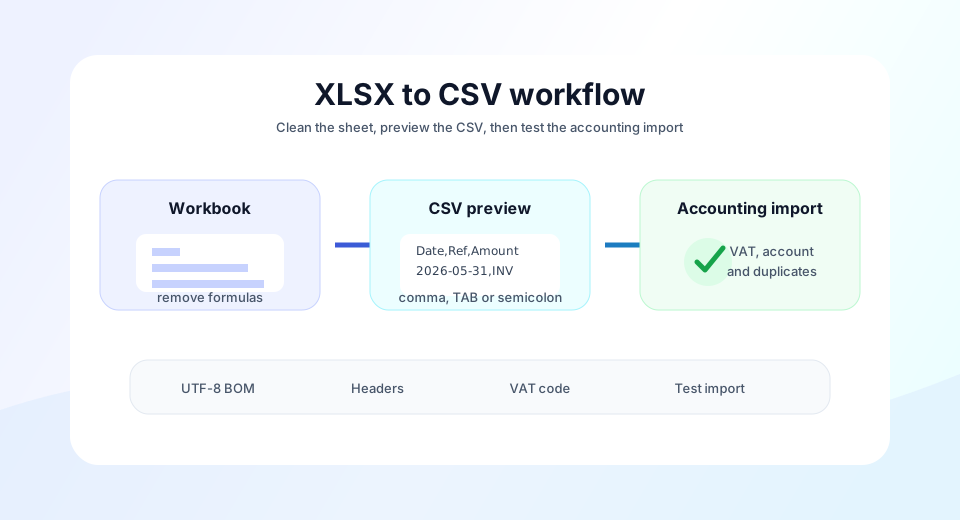
When CSV is the better format
Excel is good for review and editing. CSV is better for moving data between systems. It strips a workbook down to text values, one row at a time, which makes imports easier to validate.
| Use case | Why CSV helps |
|---|---|
| bank imports | one transaction per row |
| stock lists | SKU, barcode, quantity and value stay in columns |
| customer records | fields can be mapped to the accounting system |
| migration work | old spreadsheets become easier to test |
For bank files, this connects directly to the Bank reconciliation in UK accounting software.
Delimiter and UTF-8 BOM
There is no single CSV flavour used everywhere. Comma is common in the UK and in technical tools. Semicolon can be safer when exported data contains many commas in descriptions. TAB can work well for messy text fields.
| Destination | Common choice |
|---|---|
| UK accounting import | follow the import template |
| Excel review | comma with UTF-8 BOM |
| bank matching file | match the bank or software format |
| technical processing | comma or TAB |
UTF-8 BOM helps Excel identify the file encoding. If a developer or API is consuming the file, it may not be needed.
Example import file
| Column | Example | Check before import |
|---|---|---|
| Date | 2026-05-31 | consistent format |
| Reference | INV-2026-1042 | no duplicate references |
| Amount | 214.80 | correct decimal point |
| VAT code | standard or zero rated | matches the transaction |
| Account | sales, purchases or stock | exists in the chart of accounts |
If the file is used for reconciliation, see matching bank feed entries and bank feeds in accounting software.
Common mistakes
- exporting the wrong sheet from the workbook
- leaving total rows, notes or blank columns in the file
- changing column names expected by the importer
- mixing comma and semicolon conventions
- losing special characters because of encoding
- importing stock data without SKU, quantity, VAT and account mapping
For ecommerce and stock processes, CSV often sits next to inventory sync. The guide to stock across sales channels covers the wider workflow.
Recommended workflow
- Create a clean sheet only for import data.
- Remove formulas, formatting, totals and helper notes.
- Choose the delimiter expected by the receiving system.
- Check the preview before downloading.
- Test a small import before using the full file.
A good CSV file is boring in the best way: predictable enough for software to read, and clean enough that bookkeeping does not inherit spreadsheet mistakes.